Throttling Assignment
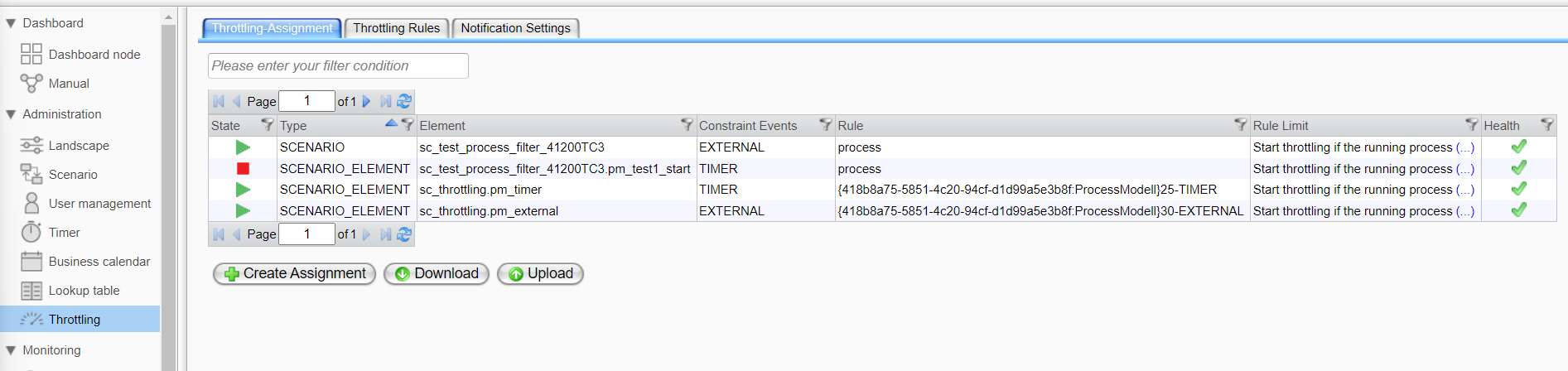
Within the table throttling assignment, a set of throttling rules can be attached to an Orchestra element.
Activate/Deactivate Throttling Assignment
In the column State, double-click the icon to activate or deactivate the throttling assignment.
Details View
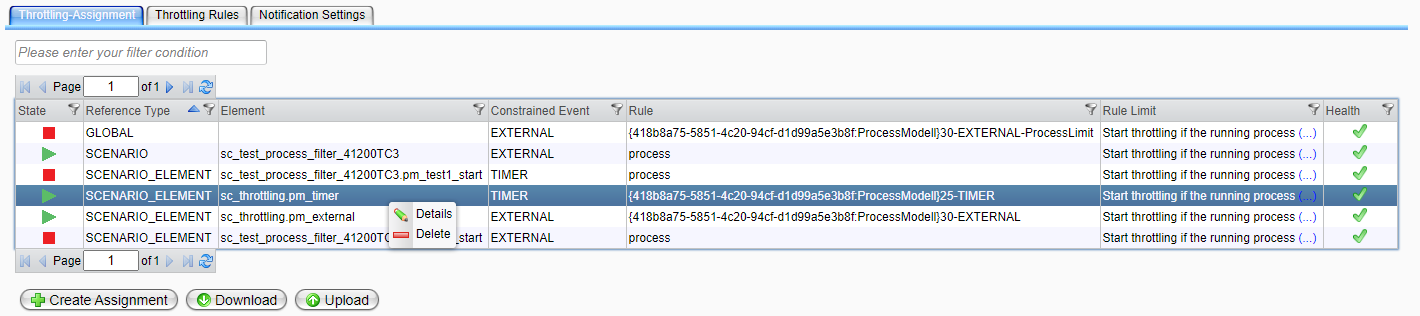
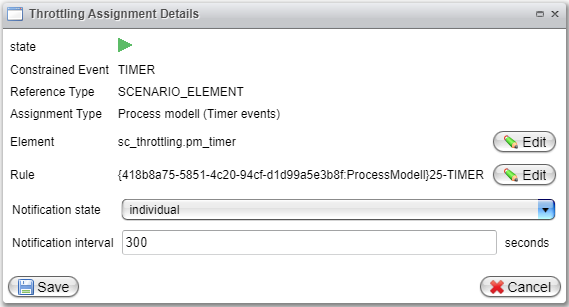
To view the details of the throttling assignment, right-click on a list element to open the context menu and select Details. The throttling assignment details dialog will display more information about the throttling assignment:
| Field | Description |
|---|---|
| State | The state of the throttling assignment: = inactive = inactive = active = active |
| Reference Type | The type of Reference. |
| Element | The scenario or process model that is bound to the throttling assignment. |
| Constrained Event | The type of event. |
| Rule | The throttling rule being assigned. |
| Assignment Type | Type of throttling assignment. |
| Notification state | - Default: use the default notification setting as defined in Notification Settings. - Individual: override the notification interval with the specified interval. |
| Notification interval | Overwrite the default notification interval. |
Create Assignments
-
The creation of Process Model (External Events) assignments is described in chapter Create Process Model (External Events).
-
The creation of Process Model (Timer Events) assignments is described in chapter Create Process Model (Timer Events).
-
The creation of Scenario (External Events) assignments is described in chapter Create Scenario (External Events).
-
The creation of Ingoing Cell Signals assignments is described in chapter Ingoing Cell Signals.
-
The creation of Orchestra Remote API assignments is described in chapter Orchestra Remote API.
-
The creation of Orchestra Wide assignments is described in chapter Orchestra Wide.
Download Throttling Assignments
You can export a snapshot of the current throttling assignments by using the Download button in the Throttling Assignment tab.
Upload Throttling Assignments
To import previously created throttling assignments into your Orchestra runtime, use the Upload button in the Throttling Assignment tab.
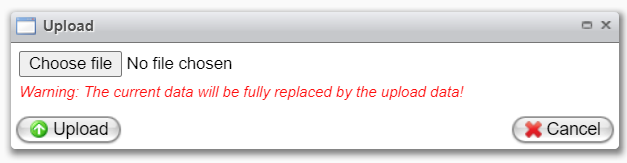
Click Choose File to select a file on your local machine, then click Upload to start uploading the throttling assignments.